

AI for Every Stage of the Client Journey
The best client relationships run on the right information at the right time. This guide shows you how to collect it — consistently, efficiently and without asking the same question twice.
Meet the AI Template Builder
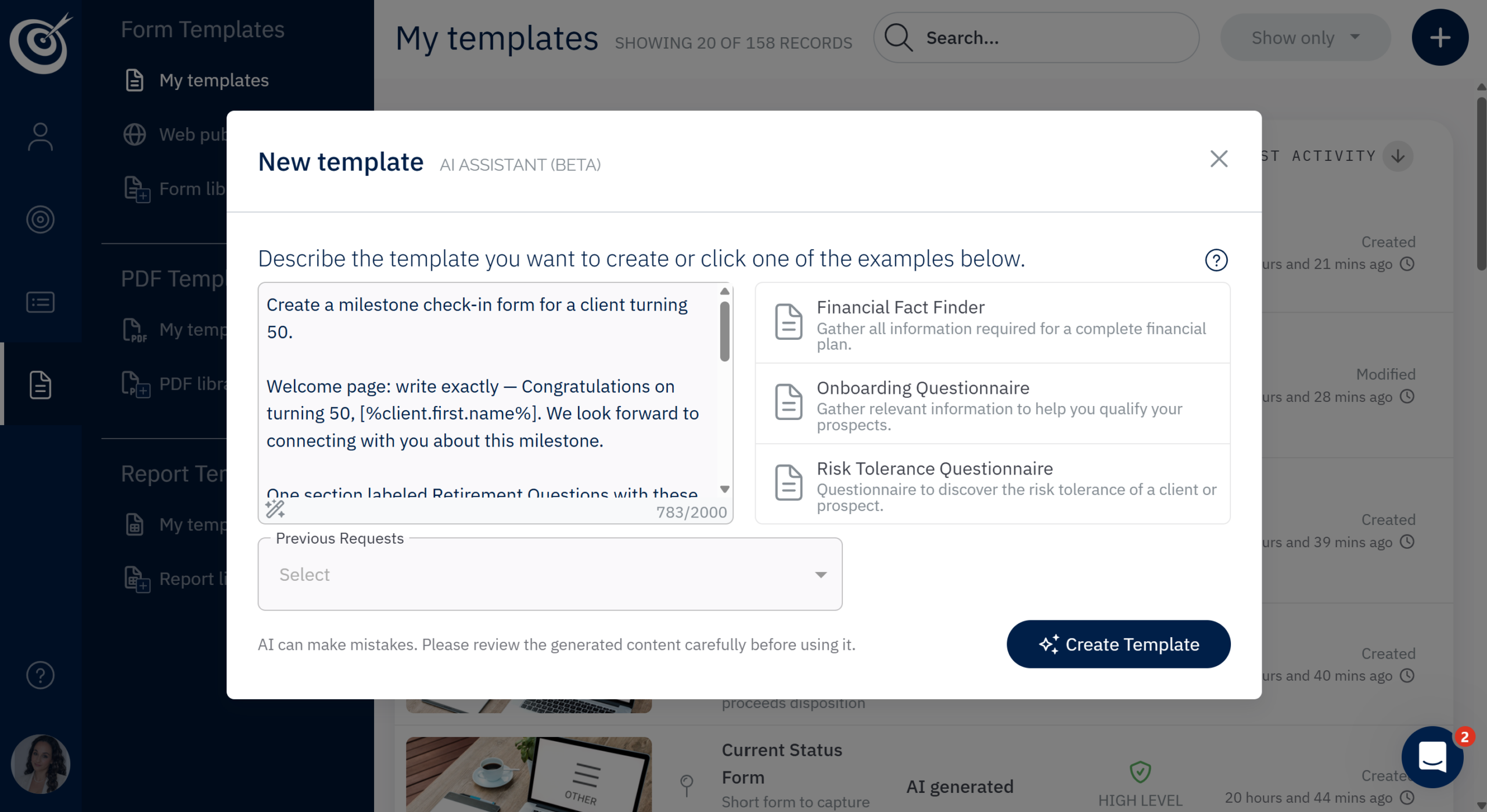
Every prompt in this guide goes here. Open the AI Template Builder, paste a prompt, and PreciseFP drafts a working form you can review and personalize.
Three Ways to Build a Form
PreciseFP already has validated templates ready to install. The AI form builder works alongside them — not as a replacement. Know which approach to use before you start.
Follow Along Session by Session
Each accordion matches one session. Open it to find the forms, prompts and tips covered that week. Everything is here — no note-taking required.
Write it directly TO the ideal client — not about the advisor, not about the firm. The reader should feel like this was written specifically for someone in their situation.
Structure it like this:
- One warm, specific opening sentence that speaks directly to the type of person reading this — reference their likely situation (business owner, professional, family) so the right person thinks "that's me" and the wrong person self-selects out
- Two service options, each with:
- A 2-3 sentence description written to the reader, not about the service — focus on what their life looks like with this option, not what the advisor does
- The fee listed cleanly underneath
Option 1: investment management — 1% annually up to $1M, 0.75% above that, $250,000 minimum
Option 2: planning retainer — $4,500/year for individuals, $6,000/year for households, custom for business owners
- One genuine, unhurried closing sentence that respects their decision either way — no pressure, no redirect
Tone: written directly to a specific person, not broadcast to everyone. Confident, warm, and human — like a trusted advisor speaking to exactly the right client.
Use only standard straight quotes and hyphens.
No special characters. Under 150 words.
Install. Go to Templates › Form Library › Lead Generation and install the Financial Consultation template.
Brand it first. Add your logo, headshot and brand colors before publishing. A form that looks like your firm converts better than a generic one.
Personalize the welcome page. Use the sparkle ✦ icon to add two or three sentences about who you work best with. This self-selection is the whole point — the right prospects will recognize themselves and complete it. The wrong ones will leave.
Publish and put it everywhere. Use Web Publisher to get a public link. Add it to your website contact page, email signature, LinkedIn bio and any directory profiles where your firm is listed.
Check it weekly and respond fast. Speed of response to a cold inbound lead is one of the strongest signals a prospect uses to judge your firm. Respond within one business day.
This quick form gives me a little context before we connect. It should only take a minute.
What the form actually asks. The Onboarding Questionnaire includes financial range questions — household income, investments, real estate and net worth — each as a simple range selector. This is the qualifying layer. A prospect who selects “up to $75,000” in household income and “up to $100,000” in investments is telling you something important before you ever speak to them. A prospect who selects “more than $250,000” and “more than $500,000” is telling you something different. That context changes the conversation you prepare for.
Install. Install the Onboarding Questionnaire from the Forms Library.
Personalize the welcome page. Use the sparkle ✦ icon to add a warm greeting with macros like [%client.first.name%] and [%advisor.first.name%] — see the full macro list. Keep it warm and low-pressure — this is not a fact-find, it is a short step before the conversation.
Send timing. Send after they contact you, before the meeting is confirmed. Their answers help you decide whether to move forward and what to focus on when you do.
Don't worry about perfect numbers right now — I just want the big picture.
Install. Choose the Financial Fact Finder from the Forms Library that matches your CRM — Redtail, eMoney, RightCapital, MoneyGuidePro and Asset-Map versions are all available. If you do not use a CRM integration, the standard Financial Fact Finder works fine.
Use it in the meeting. Open it on your screen as a conversation guide. Work through it together rather than sending it as homework — clients share more in conversation than they do filling in a form alone.
Or send it right after. If the meeting runs long or the client prefers to fill it in at home, send it within a couple of hours while the conversation is still fresh.
After they submit. Send it back prefilled with a note: here is what I captured — does this feel right? It takes 30 seconds and signals you were actually listening. It also catches anything misheard before it becomes a planning error.
Use an AI notetaker. If you use an AI meeting notetaker, export what it captured into PreciseFP to prefill the form before sending. Clients confirm rather than re-enter. If anything is still outstanding after submission, follow up with a short checklist rather than restarting the whole form.
Add the RTQ and your calendar link at the end. After the fact finding section, add the prebuilt Risk Tolerance Questionnaire from the Forms Library. Then embed your calendar link on the thank you page. One link gives the client everything — fact find, risk tolerance and a scheduled meeting time.
Personalize the welcome page using the sparkle ✦ icon before sending. The AI works one page at a time.
Great meeting today. Before I put your plan together, I want to capture a few details while everything is fresh.
Before you open the form, quickly gather the following:
1. A rough estimate of your net worth and monthly expenses
2. Details on any investment accounts — type, approximate value
3. Insurance coverage you currently hold
4. CPA or attorney contact information if applicable
When you are ready, click the link below. The form takes about ten minutes — skip anything that does not apply and share what you can. The more specific you are the more tailored your plan will be.
[Form link]
— [Advisor first name]
This is the only stage where we need precise details. After this everything gets easier.
Create a client data collection form section titled "Household Financial Information" with the following required fields:
Annual Salary – numeric/$, required. Help: Employer, Social Security, Pension, Investments, Household Income
Net Worth – numeric/$, required
Liquid Net Worth – numeric/$, required. Help: Investments that can be liquidated, Checking, Savings
Tax Rate – dropdown, required. Options: 0–15%, 16–28%, 29–33%, 34–39%, Over 40%
Investable Assets – numeric/$, required
Source of Wealth – text, required. Help: Income from earnings, household income, inheritance, gift
Annual Expenses – numeric/$, required. Help: Rent, mortgage, utilities, loans, child support
Special Expenses – optional, default 0. Help: Down payment for home or vehicle, education, major medical expenses
Time Frame for Special Expenses – dropdown. Options: Within 2 years, 3–5 years, 6–10 years, Over 10 years
Banking Institution Name – text, optional
Investment Experience
Investment Knowledge – dropdown, required. Options: Good, Limited, Excellent, None
Any investment experience? – dropdown, required. Options: Yes, No. Help: Employer plans, investment funds held at other companies, stocks, bonds, annuities
Investment Objective and Purpose
Investment Objective – dropdown, required. Options: Current Income, Growth & Income, Growth, Balanced, Maximum Growth
Investment Purpose – dropdown, required. Options: Save for Education, Retirement Purpose, Generate Income, Accumulate Wealth, Preserve Wealth, Market Speculative
Risk Tolerance – dropdown, required. Options: Conservative, Moderately Conservative, Moderate, Moderately Aggressive, Aggressive
Time Horizon – dropdown, required. Options: Under 1 year, 1–2 years, 3–5 years, 6–10 years, 11–20 years, Over 20 years
Liquidity Needs – dropdown, required. Options: Very Important, Somewhat Important, Not Important, Does Not Matter
PART 2:
Create a client data collection section titled "Trusted Contact & Beneficiary."
Trusted Contact Section description: A person we can contact if we are not able to get in contact with you. This person cannot make changes or gain information on your account. It is only to reach out to you if we are not able to get in contact with you.
First Name – text
Last Name – text
Phone Number – phone field with international country code
Relation to Client – text
Address – physical only, no P.O. boxes. Fields: Address Line 1, City, State/Province – dropdown of all US states and territories, ZIP/Postal Code
Email Address – text
Beneficiary (repeatable, "+ Add More", all required)
First Name, required
Last Name, required
Social Security Number, required
Birthdate, required
Gender – dropdown, required. Options: Male, Female
Primary or Contingent – dropdown, required. Options: Primary, Contingent
Percentage – numeric/%, required
Relation to Client – text, required
Required fields. Fields marked as required in the prompt will show an asterisk in the form. Clients cannot move forward without completing them. Use required fields for anything that will cause a NIGO if blank — legal name, SSN, date of birth and beneficiary details at minimum.
Prefill everything you already have. Before sending, prefill all existing client data so clients confirm rather than re-enter. A form that arrives half-filled takes half the time.
Keep this quick. It helps me stay ahead of changes instead of reacting to them.
• Any change to household income (yes/no + amount field)
• Any new or unexpected major expenses (yes/no + description field)
• Any changes to employer benefits or coverage (yes/no + description field)
• Any new financial goals that have come up since we last met (yes/no + description field)
• A 1–5 scale for overall confidence in their financial plan right now
• One open field: anything else on their mind financially
Tone: brief, warm and low-pressure — this should feel like a quick check-in from someone paying attention, not a form from a firm.
Personalize the delivery email. Two sentences: what it is and why you are sending it. Reference their top goal from onboarding.
Response speed. If a client flags a change, respond within 48 hours. Speed of response is part of the experience.
Three months in — I wanted to check in with a quick form to make sure nothing has changed that we should talk about. It takes about two minutes. If anything has shifted, just flag it and I will be in touch within 48 hours.
— [Advisor first name]
• Any new financial accounts opened or closed since we last spoke (yes/no + institution and type fields)
• Any significant changes to debt such as new loans, payoffs or refinancing (yes/no + description field)
• Any changes to insurance coverage or new gaps identified (yes/no + description field)
• Any major life events in the past six months — job change, move, marriage, divorce, new dependent or inheritance (yes/no + description field)
• Any changes to retirement plan contributions or employer match (yes/no + updated amount field)
• A 1–5 scale for how well the client feels the plan reflects their current situation
• One open field for anything coming up in the next six months they want to plan around
Tone: proactive and specific.
Why this template works. Instead of asking clients to fill in new information, it puts what is already on file in front of them and asks: has anything changed?
Step 2 — Enhance with AI. Use the prompt above to personalize the welcome and thank you copy with macros for advisor and client name.
Step 3 — Embed your calendar link. Add your calendar link so clients can confirm information, complete the RTQ and book their meeting time all in one place.
Half the year gone already. I am sending this quick form to make sure we are not missing anything before the second half — job changes, new accounts, insurance gaps, anything on the horizon. Takes about three minutes.
— [Advisor first name]
Your annual review is coming up. Before we meet, this short form will put what we have on file in front of you. Just confirm what has changed — it takes about three minutes.
Why this template works. Instead of asking clients to fill in information from scratch, it puts what is already on file in front of them and asks: has anything changed?
Step 2 — Personalize page by page. Open the welcome page and use the sparkle ✦ icon to add a warm greeting with macros like [%household.first.name%] and [%advisor.first.name%] — see the full macro list. Open the thank you page and use the sparkle ✦ icon to add a personal closing with your contact details. The AI works one page at a time — do not try to update the whole form in one prompt.
Step 3 — Add your calendar link. Embed your calendar link so clients can confirm information and book their meeting time in one place.
Your annual review is [date]. Before we meet I am sending a short form that puts everything we have on file in front of you. Just confirm what has changed — it takes about three minutes and means we can spend the whole meeting on what matters rather than paperwork.
— [Advisor first name]
Question 1: 1–5 radio scale. Label: Overall satisfaction with today's meeting. Options top to bottom: 1 — Very dissatisfied; 2 — Dissatisfied; 3 — Neutral; 4 — Satisfied; 5 — Very satisfied.
Question 2: yes/no radio. Label: Did the meeting cover all the questions or topics you wanted addressed.
Question 3: yes/no radio. Label: Did you feel understood and prioritized as a client during this meeting.
Question 4: open text. Label: What could we do better.
Question 5: 0–10 radio scale. Label: How likely are you to refer a friend or family member to us. Options top to bottom: 0 — Not at all likely; 1; 2; 3; 4; 5; 6; 7; 8; 9; 10 — Extremely likely.
Question 6: radio group. Label: May we follow up with you about your responses. Options: No follow-up needed; Yes — by email; Yes — by phone.
Welcome page: write exactly — Hello [%client.first.name%], thank you for taking a few moments. Your feedback is read personally by your advisor.
Thank you page: write exactly — Thank you [%client.first.name%]. If you have anything else to share please reach out to [%advisor.first.name%] directly at [%advisor.email%] or call us at [%advisor.phone%].
Tone: warm and personal — not a corporate survey.
Delivery email. Frame it as a thank-you, not a survey request. Keep the subject line personal.
Review process. Monthly: pull 30 days of responses, group by theme (communication, process and relationship), identify the top issue, assign one fix to one owner. Fix one thing per month — over 12 months that compounds into a meaningfully better client experience.
Thank you for coming in today. I put together a short two-minute form — your feedback is read personally by me and genuinely shapes how we work. I appreciate you taking a moment.
— [Advisor first name]
Welcome page: write exactly — Congratulations on turning 50, [%client.first.name%]. We look forward to connecting with you about this milestone.
One section labeled Retirement Questions with these fields in exactly this order:
1. Are you currently contributing to a 401k or IRA? (yes/no)
2. Are you contributing the maximum amount allowed? (yes/no)
3. What is your target retirement age — dropdown: Before 60, 60 to 62, 63 to 65, 65 to 67, 67 to 70, Not sure
4. Would you like to discuss your retirement contributions with your advisor? (yes/no)
5. How would you prefer to follow up — dropdown: Email, Phone call, Video call, No follow-up needed
Do not add any other fields. Do not include financial advice or projections.
Welcome page: write exactly — Congratulations on turning 55, [%client.first.name%]. We wanted to check in with a few quick questions before our next conversation.
One section labeled Retirement Questions with these fields in exactly this order:
1. Are you currently employed by the employer whose retirement plan you participate in? (yes/no)
2. Are you aware of the distribution rules that may apply if you leave your employer this year or later? (yes/no)
3. Would you like your advisor to walk you through your options? (yes/no)
4. How would you prefer to follow up — dropdown: Email, Phone call, Video call, No follow-up needed
Do not include financial advice or projections.
Welcome page: write exactly — Congratulations on turning 59 and a half, [%client.first.name%]. This is an important milestone — we have a few quick questions before our next conversation.
One section labeled Retirement Questions with these fields in exactly this order:
1. Which account types do you currently hold — multi-select: Traditional IRA, Roth IRA, 401k, 403b, Annuity, Other
2. Do you anticipate needing to take distributions in the next three years? (yes/no)
3. If yes approximately how much per year (text field)
4. Would you like to discuss your withdrawal options with your advisor? (yes/no)
5. How would you prefer to follow up — dropdown: Email, Phone call, Video call, No follow-up needed
Do not include financial advice or projections.
Create a form with one section labeled Retirement Questions. Use exactly these 5 fields in exactly this order:
Field 1 — dropdown, label: "What is your current thinking on when to claim Social Security?" — options: As early as possible, At my full retirement age, Delay as long as possible, Not sure yet
Field 2 — yes/no, label: "Have you reviewed your Social Security statement in the past year?"
Field 3 — dropdown, label: "What is your current Medicare status?" — options: Not yet enrolled, Enrolled in Part A only, Enrolled in Parts A and B, Enrolled in Medicare Advantage, Enrolled in a Medigap plan
Field 4 — yes/no, label: "Would you like to discuss Social Security and Medicare timing with your advisor?"
Field 5 — dropdown, label: "How would you prefer to follow up?" — options: Email, Phone call, Video call, No follow-up needed
Welcome page: write exactly — Congratulations on this milestone, [%client.first.name%]. We have a few quick questions we would love to cover before our next conversation.
Create a form with one section labeled Retirement Questions. Use exactly these 5 fields in exactly this order:
Field 1 — multi-select, label: "Which accounts are subject to required minimum distributions?" — options: Traditional IRA, Inherited IRA, 401k, 403b, Other
Field 2 — yes/no, label: "Have you taken your required distribution for this year?"
Field 3 — yes/no, label: "Do you make charitable contributions and would you like to discuss distribution options?"
Field 4 — yes/no, label: "Would you like your advisor to review your distribution plan?"
Field 5 — dropdown, label: "How would you prefer to follow up?" — options: Email, Phone call, Video call, No follow-up needed
Welcome page: write exactly — Congratulations on this milestone, [%client.first.name%]. We have a few quick questions we would love to cover before our next conversation.
When to send. Trigger from your CRM when a client is within 90 days of the relevant age. Build all five forms in advance and store them in your template library so your team can deploy the right one immediately.
Prompt note. If the output does not match the questions listed, check that you pasted the full prompt. The AI will sometimes simplify if the prompt is truncated.
You have hit a milestone worth a quick conversation. I am sending a short two-minute form with a few questions so I can come prepared when we connect.
— [Advisor first name]
Create a form with one section labeled New Arrival. Use exactly these 5 fields in exactly this order:
Field 1 — text, label: "Child's name"
Field 2 — date, label: "Date of birth or adoption"
Field 3 — yes/no, label: "Do you have an existing will in place?"
Field 4 — yes/no, label: "Do you have an existing 529 account?"
Field 5 — yes/no, label: "Has your life insurance been reviewed in the past 12 months?"
Field 6 — yes/no, label: "Would you like to discuss any of these with your advisor?"
Field 7 — dropdown, label: "What would you prefer as a next step?" — options: Schedule a call, Send more information or No action needed
Welcome page: write exactly — Congratulations, [%client.first.name%]. We wanted to check in with a few quick questions to make sure everything is in order for this exciting new chapter.
Create a form with one section labeled Recent Changes. Use exactly these 4 fields in exactly this order:
Field 1 — yes/no, label: "Have beneficiary designations been updated on all accounts?"
Field 2 — yes/no, label: "Do both partners have current estate documents?"
Field 3 — yes/no, label: "Would you like to review your combined financial picture with your advisor?"
Field 4 — dropdown, label: "What would you prefer as a next step?" — options: Schedule a call, Send more information or No action needed
Welcome page: write exactly — Congratulations, [%client.first.name%]. We have a few quick questions to make sure your financial picture reflects your new chapter together.
Create a form with one section labeled Current Status. Use exactly these 4 fields in exactly this order:
Field 1 — yes/no, label: "Have beneficiary designations been updated on your accounts?"
Field 2 — yes/no, label: "Would you like help creating a full account and asset inventory?"
Field 3 — yes/no, label: "Are there income or cash flow changes you would like to discuss?"
Field 4 — dropdown, label: "What would you prefer as a next step?" — options: Schedule a call, Send more information or No action needed
Welcome page: write exactly — Thank you for letting us know, [%client.first.name%]. We have a few short questions to help us understand where things stand right now.
Create a form with one section labeled Current Status. Use exactly these 5 fields in exactly this order:
Field 1 — yes/no, label: "Do you have a retirement account with your prior employer to address?"
Field 2 — yes/no, label: "Have you reviewed your new employer retirement plan?"
Field 3 — yes/no, label: "Does your new role include equity compensation such as options or RSUs?"
Field 4 — yes/no, label: "Has your income changed significantly?"
Field 5 — dropdown, label: "What would you prefer as a next step?" — options: Schedule a call, Send more information or No action needed
Welcome page: write exactly — Thanks for the update, [%client.first.name%]. We have a few quick questions to make sure nothing falls through the cracks with your job change.
Create a form with one section labeled Current Status. Use exactly these 4 fields in exactly this order:
Field 1 — dropdown, label: "Approximate value of the inheritance?" — options: Under $100k, $100k–$250k, $250k–$500k, $500k–$1M, Over $1M
Field 2 — multi-select, label: "Type of assets inherited?" — options: Cash, Securities, Real estate, Retirement account, Business interest, Other
Field 3 — yes/no, label: "Would you like to discuss your options with your advisor?"
Field 4 — dropdown, label: "What would you prefer as a next step?" — options: Schedule a call, Send more information or No action needed
Welcome page: write exactly — Thank you for letting us know, [%client.first.name%]. We have a few short questions to help us understand the current situation.
Create a form with one section labeled Current Status. Use exactly these 4 fields in exactly this order:
Field 1 — dropdown, label: "Approximate net proceeds from the sale?" — options: Under $500k, $500k–$1M, $1M–$5M, Over $5M
Field 2 — dropdown, label: "Primary goal for the proceeds?" — options: Retirement income, Reinvestment, Estate planning, Philanthropy or Not sure
Field 3 — yes/no, label: "Are you working with other advisors or attorneys on this?"
Field 4 — dropdown, label: "What would you prefer as a next step?" — options: Schedule a call, Send more information or No action needed
Welcome page: write exactly — Congratulations, [%client.first.name%]. We have a few quick questions to help us understand where things stand.
Create a form with one section labeled Current Status. Use exactly these 4 fields in exactly this order:
Field 1 — yes/no, label: "Are your power of attorney and healthcare proxy documents current?"
Field 2 — yes/no, label: "Has your estate plan been reviewed recently?"
Field 3 — yes/no, label: "Are there changes to your income or financial needs you would like to discuss?"
Field 4 — dropdown, label: "What would you prefer as a next step?" — options: Schedule a call, Send more information or No action needed
Welcome page: write exactly — Thank you for letting us know, [%client.first.name%]. We have a few short questions to help make sure everything is in order.
Response time. Send the relevant form within 24 hours of the life event being reported.
Build in advance. Have all seven forms ready in your library so your team can deploy in under two minutes — not built on the spot.
Prefill. Always include the client name and any known context from prior forms.
Do not instruct the AI to generate financial advice or planning direction within form copy.
Thank you for letting us know. I want to make sure we are on top of everything this change might affect. This form takes about two minutes — once I have your answers I will be in touch with next steps.
— [Advisor first name]
AI Report Builder — Ready-to-Use Prompts
The Report Builder works differently from the form builder. Describe the report you want in plain language and PreciseFP builds it for you.
Ready to Put These Prompts to Work?
Open the AI Template Builder, paste any prompt from this guide and your form is ready in seconds.